Voice translator guide: face-to-face conversations
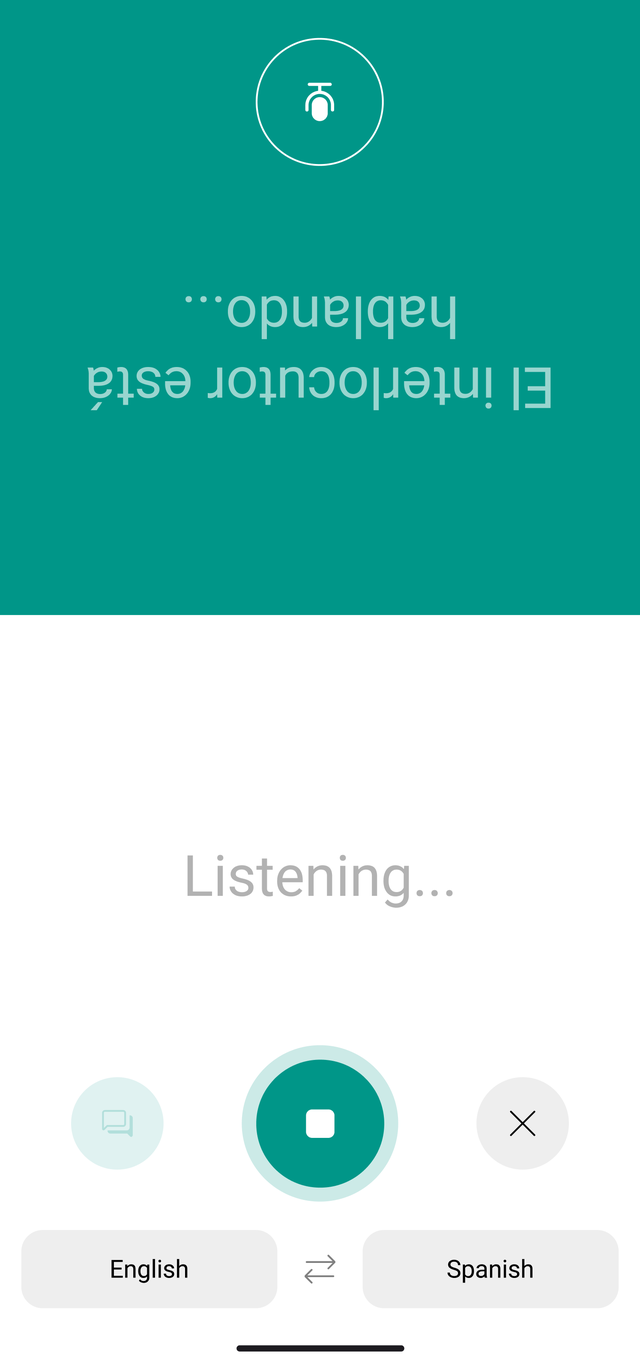
Use one screen to talk with someone who speaks another language. The face-to-face view flips the translated text toward the person sitting opposite you.
When to use it
Ask a question while traveling
Try voice translation at a hotel or restaurant when you need to exchange spoken questions and answers. Start with one request, such as ‘Is there a table for two?’, so you can easily check the recognized text.
Share one screen
Use the face-to-face view when sitting opposite someone, or the side-by-side view when sitting next to them.
Before you start
- Check that both languages are available for voice conversation. Overall translation covers 100+ languages, while voice conversation covers 18.
- Check that the app can access the microphone in your device settings.
- If you plan to use voice features without internet access, test the features you need before leaving.
Getting started
Choose your language pair
Check your language and the other person's language in the app's language selector. Translation coverage and voice conversation coverage are different.
Speak into the microphone
Press the recording button on the voice conversation screen and speak. Check the recognized text alongside its translation.
Share the translated text
Use the face-to-face view when sitting opposite each other. Switch to the side-by-side view when sitting next to each other.
Find the conversation again
Open the History tab at the bottom of the app to revisit earlier conversations. If recognition or translation differs from what you intended, check the original text and try speaking again.
Screens and available features may vary by language, platform, and app version.
Troubleshooting
The recognized words differ from what you said
Check the selected language, reduce background noise, and try a shorter sentence. Review the recognized text before relying on the translation.
Your voice is not being recognized
Check microphone access. If the problem continues, contact Support with your device, OS and app versions, selected languages, and the steps that led to the problem.
Frequently asked questions
Contact SupportDoes voice conversation support 100+ languages too?
Can I have a voice conversation without internet access?
Try it in your next conversation.
Download Talking Translator
Each update brings steadier translation and new features.